Instance Admin Dashboard
The instance admin dashboard gives operators of a self-hosted DevGuard a single place to manage the whole instance - independent of any organization. It is served by the web frontend at /admin and is protected by a cryptographic key rather than a normal user login.
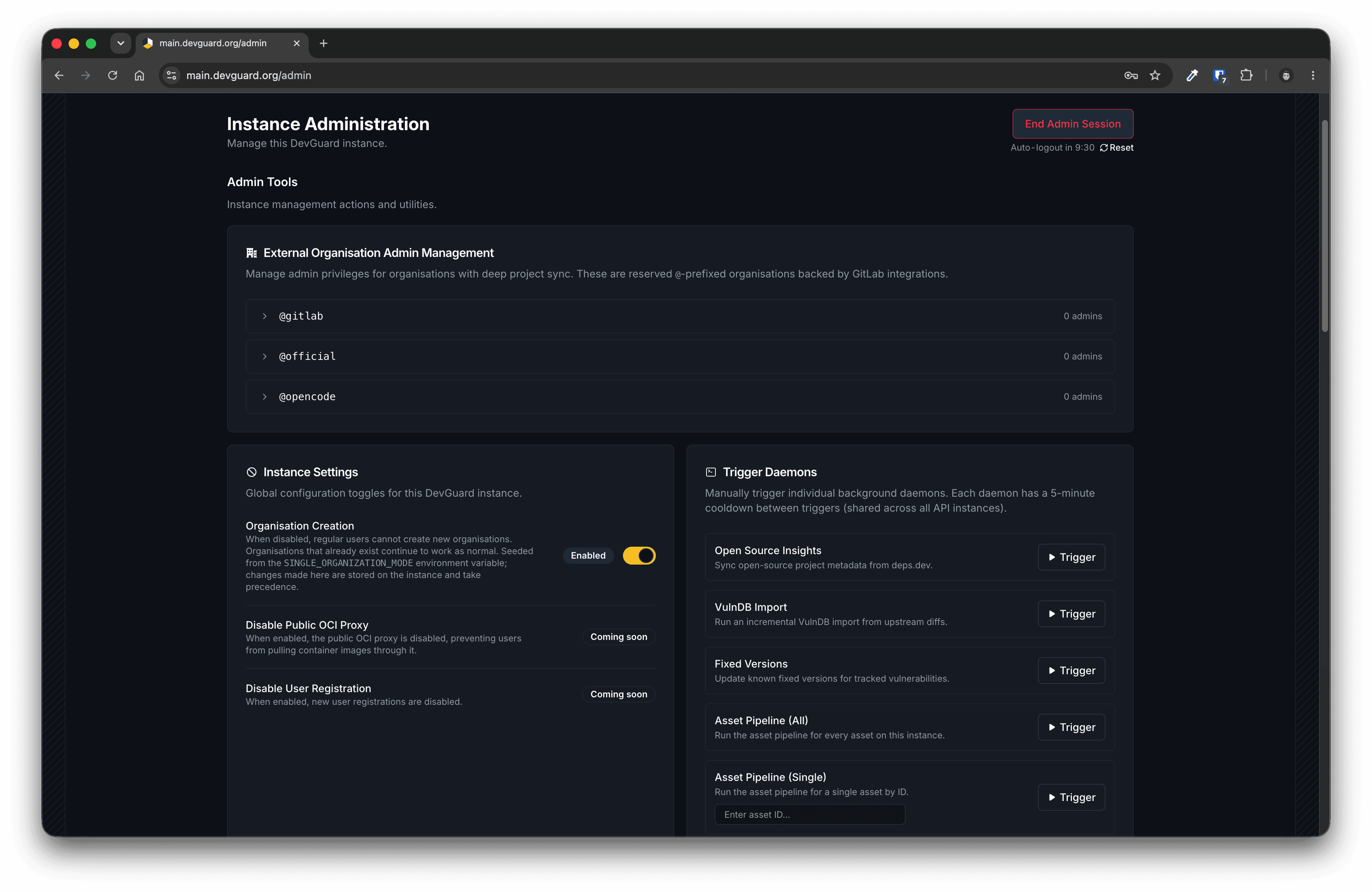
What You Can Do
Once authenticated, the dashboard exposes three sections:
- Admin Tools - instance-wide management actions: manage instance admins of external-entity organisations (the GitLab-backed
@-prefixed orgs), toggle global instance settings such as organisation creation (with user-registration and public OCI proxy toggles rolling out), and manually trigger background daemons - Open Source Insights, VulnDB import, fixed-version detection, and the asset pipeline (all assets or a single asset). - Instance Technical Info - build version, Go runtime and memory statistics, and database status.
- Instance Usage Statistics - users, organisations, projects, the overall security posture across the instance, and the top vulnerable projects.
How Authentication Works
The dashboard does not use accounts, passwords, or OIDC. Access is granted with an ECDSA P-256 keypair:
- The public key is configured on the server. DevGuard loads it at startup and uses it to verify incoming admin requests.
- The private key is held by you. You paste it into the
/adminpage, where the browser uses it to sign each request to the admin API (HTTP message signatures, RFC 9421).
Because verification depends entirely on the configured public key, leaving the public key unset disables all admin endpoints - /admin requests are rejected with 401 Unauthorized.
Prerequisites
- A self-hosted DevGuard installation on v1.7.0 or newer (Kubernetes via Helm, or Docker Compose)
- Access to modify the Helm chart
values.yaml(or the Docker Compose environment) - Either Docker or a Go toolchain to run the
devguard-cli
Set Up the Admin Dashboard
Generate an admin keypair
Use the gen-admin-key command of the devguard-cli. The CLI is bundled in the same container image as the API, so no extra download is required:
Alternatively, run it from source with a Go toolchain:
The command prints a freshly generated keypair:
Private key (keep secret, use for signing):
3a7f9c1e... (64 hex chars)

Public key (write to file, set INSTANCE_ADMIN_PUB_KEY_PATH):
a1b2c3d4... (128 hex chars)
Configure the public key in the Helm chart
Add the public key to the api block of your values.yaml:
When api.adminPublicKey is set, the chart automatically:
- creates the
devguard-instance-admin-pub-keysecret holding the key, - mounts it into the API pod at
/instance_admin_pub_key.pem, and - sets
INSTANCE_ADMIN_PUB_KEY_PATHso DevGuard loads it on startup.
Apply the change with a helm upgrade:
Access the dashboard
Open /admin on your DevGuard web frontend (for example https://devguard.example.com/admin). Paste your private key (hex) into the Private Key field and select Authenticate.
Docker Compose Configuration
For a Docker Compose deployment, write the public key to a file and mount it into the API service, then point INSTANCE_ADMIN_PUB_KEY_PATH at it:
The mounted file must contain the hex-encoded public key (the second value printed by gen-admin-key). Restart the API container to load it.
Disabling Admin Access
To turn the admin dashboard off again, remove or empty the public key:
- Helm: comment out or clear
api.adminPublicKeyand runhelm upgrade. The secret, volume mount, and environment variable are no longer rendered. - Docker Compose: remove the
INSTANCE_ADMIN_PUB_KEY_PATHenvironment variable (or the mounted key) and restart.
With no public key loaded, every /admin API request returns 401 Unauthorized.
Security Best Practices
- Keep the private key offline. Generate it on a trusted machine and store it in a secret manager or hardware token, not in the repository that holds your
values.yaml. - Rotate by regenerating. To revoke access, generate a new keypair, update
api.adminPublicKey, and roll out the change - the old private key stops working immediately. - Use one key per operator where practical, so access can be revoked individually.
- Serve the frontend over HTTPS so the key you paste cannot be intercepted, and confirm the host shown on the login screen before authenticating.
Related Documentation
- Deploy DevGuard with Helm - base installation and
values.yaml - Deploy with Docker Compose - non-Kubernetes setup
- OIDC & Restricting Access - user authentication and SSO
- Monitoring & Metrics - observability for your instance