DevGuard FAQ
I got a 404 during a scan — how do I troubleshoot?
When the scanner returns a 404, it does not necessarily mean the repository does not exist in DevGuard. DevGuard intentionally returns 404 even when the asset exists but the supplied token is invalid or lacks the required permissions. This prevents unauthenticated callers from enumerating asset names.
Verify your token
Make sure the Personal Access Token (PAT) you configured for the scanner is still valid and has not expired or been revoked. You can manage tokens in DevGuard under Settings → Personal Access Tokens. See Personal Access Tokens for details on creating and scoping tokens.
Test the token against the asset API
Use devguard-scanner curl to confirm the token works and the asset is reachable. Unlike a plain curl, this command signs requests with your PAT using DevGuard's request signing scheme:
A successful response returns JSON like {"id":"...","name":"Repo",...}. A 404 confirms the token is invalid or does not have access to the asset.
Re-generate the token if needed
If the token is invalid, create a new one with the scan scope and update it in your CI/CD configuration. See the how-to guide for API tokens for step-by-step instructions.
I cannot see the DevGuard dashboard for my repository when I am not logged in
By default, repositories (assets) in DevGuard are private — their dashboards are only visible to authenticated and authorized users.
Open the repository settings
Navigate to your repository in DevGuard and open Settings.
Enable public access
Scroll down to the danger zone and enable the Public Repository option.
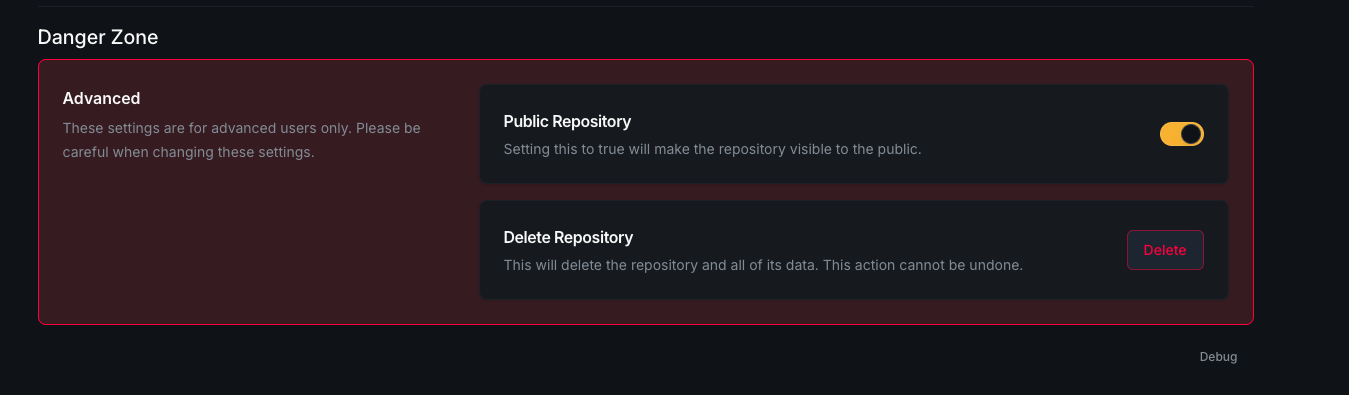
Once enabled, anyone with the link can view the security dashboard without being logged in. For more on repository configuration, see the Getting Started guide.