Manage Users and Members
Control who has access to your DevGuard organization, projects, and assets by managing team members and their roles.
Prerequisites
Before you begin, ensure you have:
- Owner or Admin role at the level you're managing
- Access to organization/project/asset settings
- User email addresses to invite
User Roles
DevGuard uses two primary roles:
| Role | Description | Permissions |
|---|---|---|
| Admin | Full administrative access | Create/edit/delete, manage members, change settings, access all data |
| Member | Standard team member access | View vulnerabilities, create events, manage within assigned scope |
| External | GitHub/GitLab integrated user | Limited read-only access, no direct management capabilities |
Manage Members
Add and remove members at the organization level:
You can manage Members on each Hierarchy Level: Organization, Group, and Repository -> Settings
- Enter the user's email address
- Select role:
- Admin - Full organizational control
- Member - Standard team access
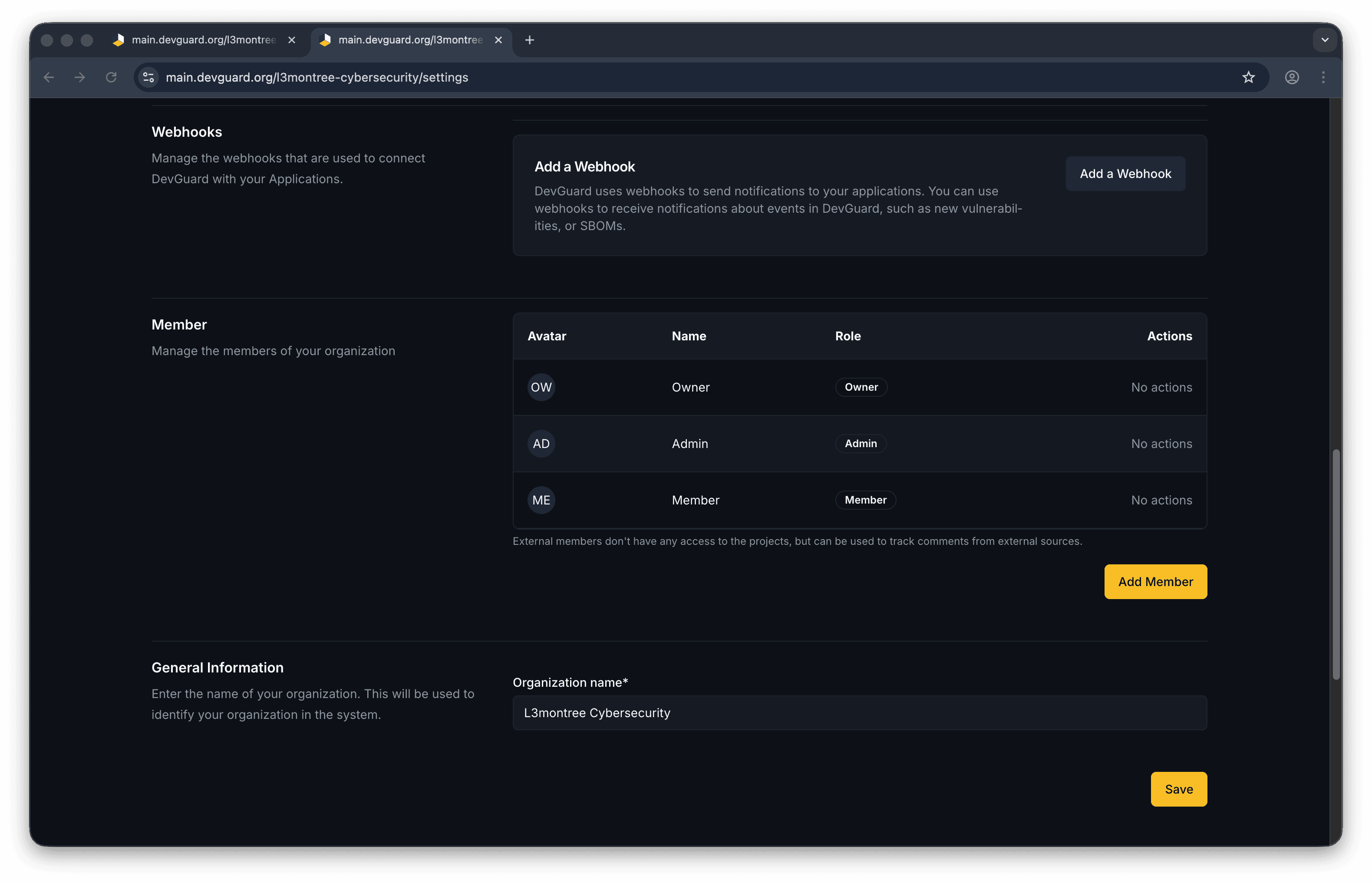
The user receives an invitation and can accept to gain access.
Manage Member
Click the three-dot menu (⋯) on the right

The user loses all access to the organization and its projects.
Access Control Hierarchy
Access follows this hierarchy:
Organization Level
├── Admin: Full control of org, all projects, all assets
└── Member: Can access allowed projects/assets
    ├── Project Level
    │   ├── Admin: Full control of project and assets
    │   └── Member: Can access allowed assets
    │       └── Asset Level
    │           ├── Admin: Full asset control
    │           └── Member: Standard asset access
Key Points:
-
Granting Admin at a higher level automatically includes lower levels
-
Revoking Member status at any level removes all sub-level access
-
External members (from GitHub/GitLab) have read-only access
-
Create and Manage API Tokens - Generate tokens for API access
-
Configure Webhooks - Automate integrations
-
Setup GitHub App - GitHub integration