Audit Trails
Every action taken on a vulnerability in DevGuard is recorded as an immutable event. This event log is your audit trail—it answers who did what, when, and why for every security finding across your organization.
This tutorial walks through how audit trails work in DevGuard, where to find them, and how to use them for compliance evidence and incident post-mortems.
What gets recorded
DevGuard records an event every time a vulnerability changes state or receives a meaningful action. Events are recorded automatically by the system (e.g., when a scan detects a new CVE) and manually by users (e.g., when someone accepts a risk or marks a finding as a false positive).
| Event type | Triggered by | What it records |
|---|---|---|
detected | System (scanner) | Initial detection, risk score, CVSS, scanner ID |
fixed | System or user | Remediation, affected component name |
accepted | User | Risk acceptance with written justification |
falsePositive | User | VEX justification type + free-text rationale |
reopened | System or user | Why the vulnerability was re-opened |
comment | User | Free-text comment without state change |
mitigate | User | External ticket URL (GitHub/GitLab/Jira) |
rawRiskAssessmentUpdated | System | Old risk score → new risk score after threat intel update |
ticketClosed | System (issue tracker sync) | Ticket closed in external system |
licenseDecision | User | Final license compliance decision |
Viewing the activity stream
Each asset version has a dedicated Activity Stream view that shows all events across all vulnerabilities for that version in chronological order.
Navigate to it:
- Open your organization in DevGuard
- Go to Projects → select your project
- Select an Asset
- Open the asset version (e.g.,
main) - Click the Activity Stream tab in the navigation
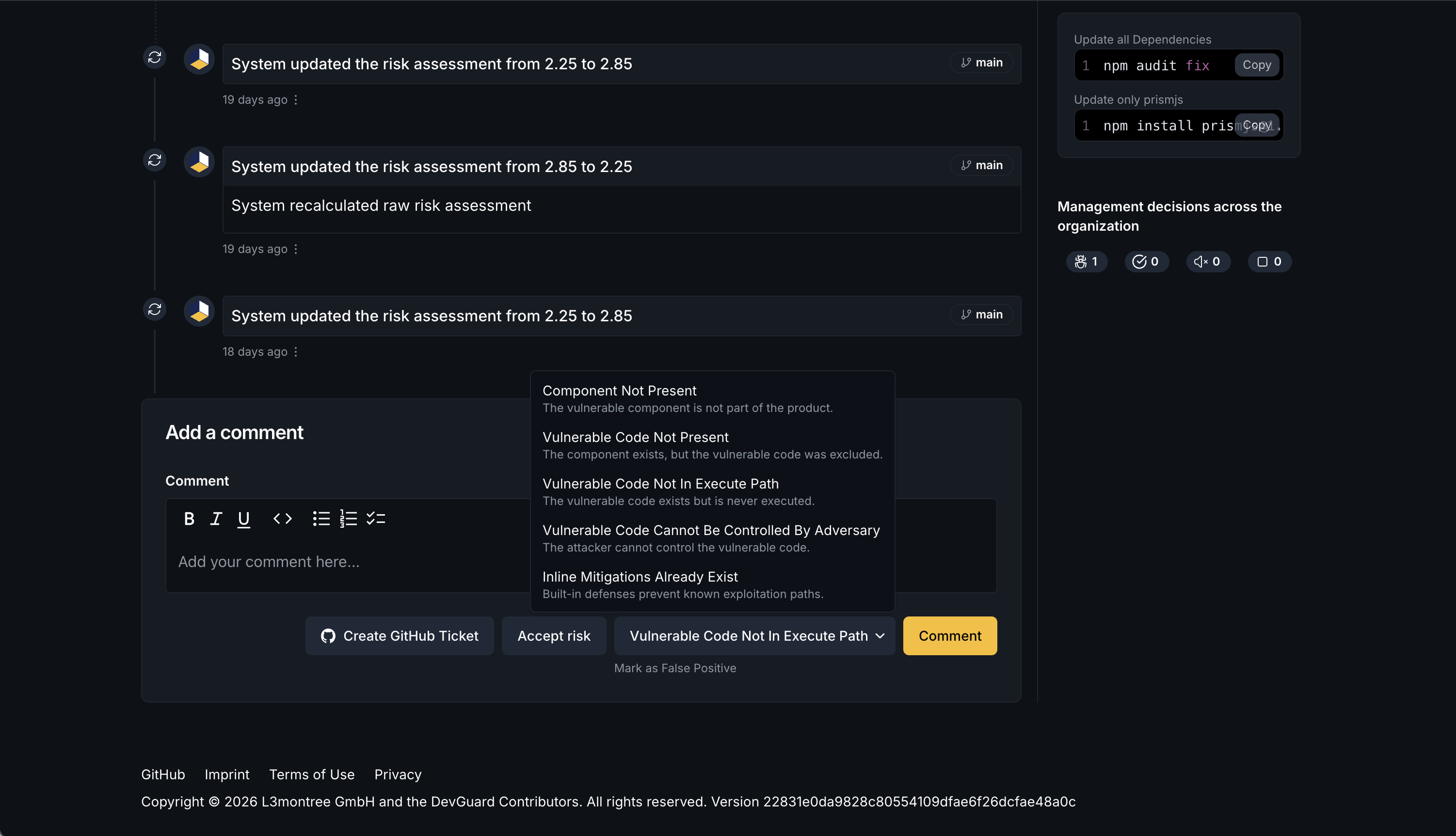
The activity stream shows a timeline with:
- The event type and human-readable description (e.g., "Jane marked CVE-2024-1234 as false positive")
- Who triggered the event (or System for automated events)
- The timestamp
- The vulnerability name and affected package
- Any justification or comment text
- Links to the full vulnerability detail page
Viewing events per vulnerability
When you need the full history of a single vulnerability, open the vulnerability detail page. The event timeline there shows only events for that specific finding—useful for tracing exactly when a finding was detected, who triaged it, and when it was resolved.
- Open any vulnerability from the findings list
- Scroll to the Event History section at the bottom of the detail page
The timeline is ordered oldest-to-newest, so you can read the complete story of how the vulnerability was handled from initial detection through resolution.
What the audit trail contains
Each event record includes:
- Event type — the action that was taken
- User — the user who triggered the event, or
systemfor automated events - Timestamp — when the event was created (immutable, stored in UTC)
- Justification — free-text rationale provided by the user (required for risk acceptance and false positive decisions)
- Mechanical justification — standardized VEX justification type where applicable (e.g.,
vulnerable_code_not_in_execute_path) - Risk scores — for
detectedandrawRiskAssessmentUpdatedevents: the CVSS score, EPSS, environmental score, and final composite risk score at the time of the event - Ticket URL — for
mitigateevents: the link to the external issue tracker ticket - Scanner ID — for
detectedevents: which scanner produced the finding
Using audit trails for compliance
ISO 27001 / ISMS evidence
Auditors reviewing your vulnerability management controls (A.8.8 in ISO 27001:2022) need to see that vulnerabilities are tracked, assessed, and responded to in a timely manner. The audit trail provides:
- Detection evidence:
detectedevents with timestamps prove continuous monitoring - Triage evidence:
accepted,falsePositive,commentevents show deliberate decision-making - Remediation evidence:
fixedevents confirm vulnerabilities were resolved - Response time: the gap between
detectedandfixed(oraccepted) timestamps gives you time-to-triage and time-to-remediation metrics
Cyber Resilience Act (CRA)
The CRA requires manufacturers to handle vulnerabilities in a coordinated and documented way. DevGuard's event trail—combined with exported VEX documents—provides the documentation chain required to demonstrate compliance with Article 13 obligations.
Export via VEX
For external sharing, DevGuard generates VEX (Vulnerability Exploitability eXchange) documents that encode your falsePositive and accepted events as standardized VEX statements. These are machine-readable and can be attached to software releases or shared with customers and regulators.
Export VEX documents from: Asset → Releases → select a release → Export VEX
Filtering and searching events
On the Activity Stream page you can filter events by:
- Event type — show only
acceptedevents, for example, to review all risk acceptance decisions - Date range — scope the view to a specific audit period
- Vulnerability ID — jump directly to events for a known CVE
Programmatic access
If you need to feed audit trail data into a SIEM or compliance tooling, the events are available via the API:
All events for an asset version:
GET /api/v1/organizations/{org}/projects/{project}/assets/{asset}/refs/{version}/events/
Events for a specific vulnerability:
GET /api/v1/organizations/{org}/projects/{project}/assets/{asset}/refs/{version}/dependency-vulns/{vulnId}/events/
Both endpoints return paginated JSON and support filtering by event type, date range, and vulnerability ID. Use a Personal Access Token for authentication.
Related documentation
- Vulnerability Event System — conceptual explanation of all event types and when to use them
- VEX: Vulnerability Exploitability eXchange — how DevGuard generates VEX documents from your audit trail
- ISO 27001 Mapping — how DevGuard controls map to ISO 27001 requirements
- Cyber Resilience Act — CRA compliance with DevGuard